
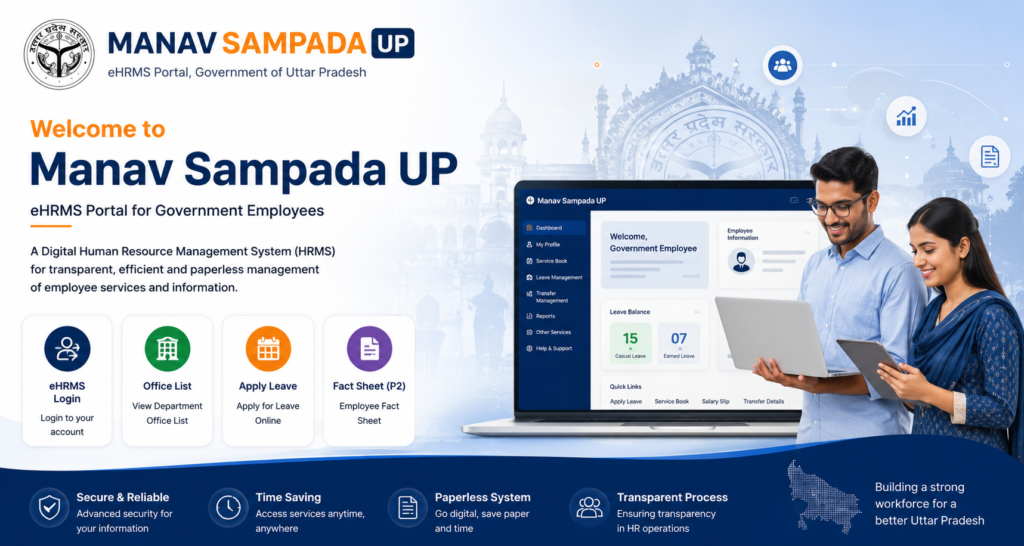
manav sampada up
🏛 Uttar Pradesh eHRMS Portal

Manav Sampada UP eHRMS – Login, Leave, Salary Slip, Employee Details & Portal Services

Manav Sampada is a digital Human Resource Management System (HRMS) developed to simplify employee management and government HR services. The Manav Sampada Portal enables government employees to access essential services such as login, leave applications, salary slip information, service book records, employee details, transfers, promotions, and retirement-related services through a single online platform.

The Manav Sampada UP portal is widely used by government departments across Uttar Pradesh to efficiently manage employee records while improving transparency and administrative efficiency. Departments such as Basic Education rely on the platform to process leave requests, maintain service records, and manage employee information digitally.

Over the years, the eHRMS Manav Sampada portal has become an important digital platform for lakhs of government employees. From logging into the portal and applying for leave to checking salary details, employee information, and service book records, most HR-related activities can now be completed online with ease.

ℹ️

About This Guide

This guide explains the complete Manav Sampada UP Login process, leave application procedure, salary slip access, service book records, employee details, and other important eHRMS services with simple step-by-step instructions.

Quick Services

💰
Salary Slip
📚
Service Book
🔄
Transfers & Promotions
📋
Employee Details
/************************ MANAV OVERVIEW ************************/.ms-overview{ padding:90px 20px; background:linear-gradient(135deg,#F8FBFF,#F8FCF8); font-family:'Segoe UI',sans-serif; }.ms-container{ max-width:1250px; margin:auto; }.ms-grid{ display:grid; grid-template-columns:1.3fr .7fr; gap:35px; align-items:start; }.ms-badge{ display:inline-block; background:#5CB531; color:#fff; padding:10px 22px; border-radius:40px; font-size:14px; font-weight:700; margin-bottom:18px; }.ms-title{ font-size:42px; color:#0B3D91; font-weight:800; margin-bottom:25px; line-height:1.3; }.ms-title span{ color:#F68B12; }.ms-content p{ font-size:17px; line-height:1.9; color:#666; margin-bottom:22px; }/******** Services ********/.ms-services{background:#fff; padding:35px; border-radius:22px; box-shadow:0 15px 40px rgba(0,0,0,.08); margin-top:35px;}.ms-services h3{font-size:28px; color:#0B3D91; margin-bottom:25px;}.ms-list{display:grid; grid-template-columns:repeat(2,1fr); gap:15px;}.ms-list div{background:#F8FAFD; padding:14px 18px; border-radius:10px; border-left:4px solid #5CB531; font-size:15px; color:#444;}/******** Login Card ********/.login-card{background:#fff; border-radius:22px; padding:35px; box-shadow:0 15px 40px rgba(0,0,0,.08);}.login-card h3{font-size:30px; color:#0B3D91; margin-bottom:25px;}.step{display:flex; gap:18px; margin-bottom:22px;}.step-number{width:42px; height:42px; border-radius:50%; background:#F68B12; color:#fff; font-weight:700; display:flex; align-items:center; justify-content:center; flex-shrink:0;}.step p{margin:0; line-height:1.7; color:#555;}.note{margin-top:30px; background:#F5FCF6; padding:22px; border-left:5px solid #5CB531; border-radius:15px;}.note h4{color:#0B3D91; margin-bottom:8px;}.note p{margin:0; color:#555;}@media(max-width:991px){.ms-grid{grid-template-columns:1fr;}.ms-list{grid-template-columns:1fr;}}@media(max-width:768px){.ms-overview{padding:60px 18px;}.ms-title{font-size:30px;}.ms-content p{font-size:16px;}}
UP eHRMS Portal

Manav Sampada Overview & Services

Over the years, Manav Sampada has become one of the most important digital Human Resource Management (HRMS) platforms for lakhs of government employees across Uttar Pradesh. The portal enables various government departments to manage employee records, leave applications, service books, transfers, promotions, and other HR-related activities through a secure online system.

The Manav Sampada UP portal is widely used by departments such as Basic Education to simplify administrative work, improve transparency, and reduce paperwork. Employees can complete most HR-related tasks online without visiting departmental offices.

Whether you want to access Manav Sampada Login, apply for leave, download your salary slip, view your service book, or check employee details, the portal provides all these facilities through a single digital platform.

Services Available on Manav Sampada Portal

👤 Employee Login & Profile
📝 Online Leave Application
📚 e-Service Book
💰 Salary Slip
📋 Employee Details
🔄 Transfer Orders
📈 Promotion Records
📄 Fact Sheet (P2)
⭐ Annual Confidential Report (ACR)
📂 Document Upload
📢 Department Notices
🏦 Pension Services
📱 Mobile App Services
1
Portal Access

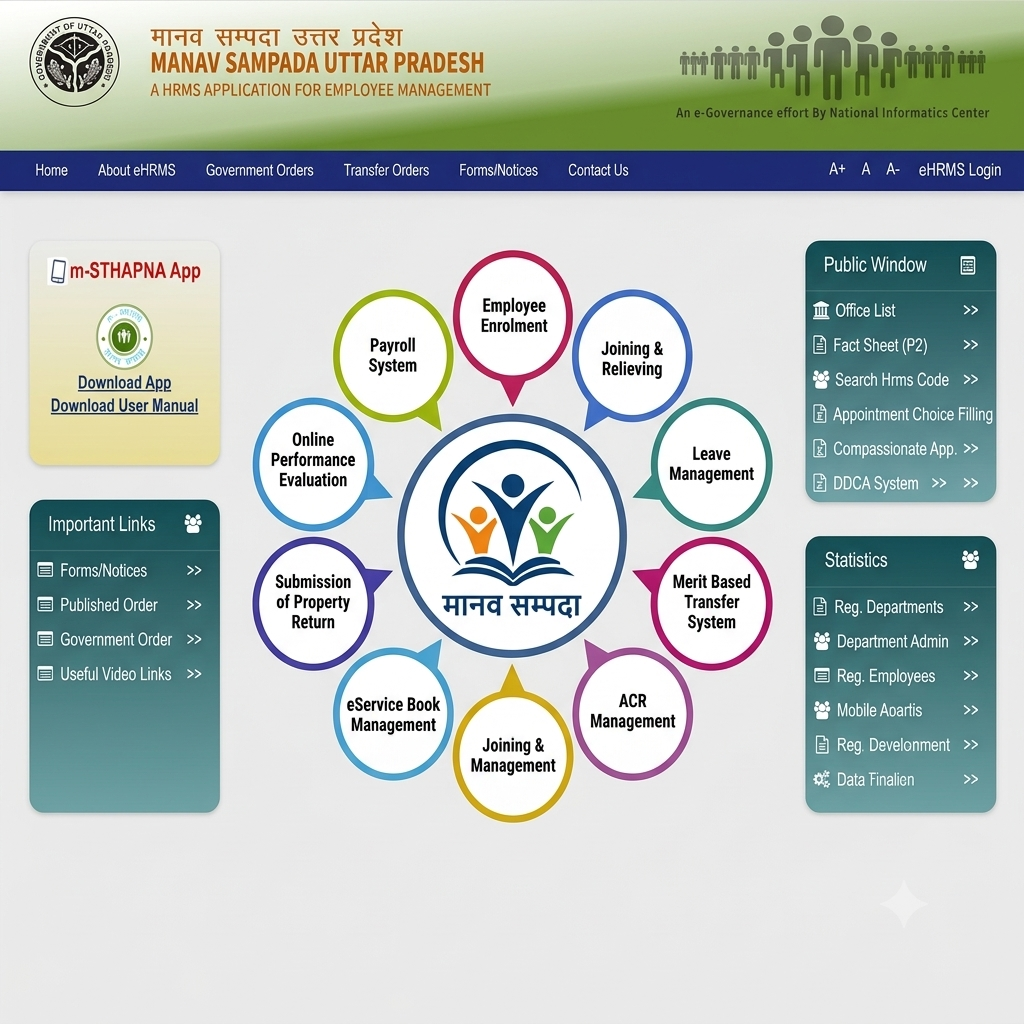
Step 1: Open the Official eHRMS Portal

Open your preferred web browser and visit the official Manav Sampada eHRMS Portal. This is the authorized platform provided by the Government for accessing employee-related services such as Manav Sampada Login, leave management, salary slips, service book records, employee details, and other HR services.

🌐

Important Tip

Always use the official eHRMS website to access your employee account. Avoid unofficial websites and ensure that the web address is correct before entering your login credentials to keep your account secure.
manav sampada portal
/*********************** Premium Step Card ***********************/.kec-step-card{ width:100%; margin:30px 0; padding:40px; display:flex; align-items:flex-start; gap:30px; box-sizing:border-box; background:linear-gradient(135deg,#ffffff,#f8fbff); border:1px solid #E5ECF5; border-top:6px solid #F68B12; border-radius:22px; box-shadow:0 15px 40px rgba(0,0,0,.08); transition:.35s; }.kec-step-card:hover{ transform:translateY(-5px); box-shadow:0 22px 45px rgba(0,0,0,.12); }.kec-step-no{ width:72px; height:72px; min-width:72px; border-radius:50%; background:linear-gradient(135deg,#F68B12,#ffab3d); display:flex; align-items:center; justify-content:center; color:#fff; font-size:28px; font-weight:700; }.kec-step-content{ flex:1; }.step-badge{ display:inline-block; padding:8px 18px; background:#5CB531; color:#fff; border-radius:30px; font-size:14px; font-weight:600; margin-bottom:18px; }.kec-step-content h2{ margin:0 0 18px; color:#0B3D91; font-size:34px; line-height:1.3; }.kec-step-content h2 span{ color:#F68B12; }.kec-step-content p{ color:#555; font-size:17px; line-height:1.9; margin-bottom:25px; }.kec-tip{ display:flex; gap:18px; align-items:flex-start; background:#EEF9EA; border-left:6px solid #5CB531; padding:22px; border-radius:16px; }.kec-tip-icon{ width:55px; height:55px; min-width:55px; border-radius:50%; background:#5CB531; display:flex; align-items:center; justify-content:center; color:#fff; font-size:24px; }.kec-tip h4{ margin:0 0 8px; color:#0B3D91; font-size:20px; }.kec-tip p{ margin:0; font-size:16px; color:#555; line-height:1.8; }@media(max-width:768px){.kec-step-card{ flex-direction:column; padding:25px; gap:20px; }.kec-step-no{ width:60px; height:60px; min-width:60px; font-size:24px; }.kec-step-content h2{ font-size:26px; }.kec-step-content p{ font-size:16px; }.kec-tip{ flex-direction:column; }}
2
Employee Login

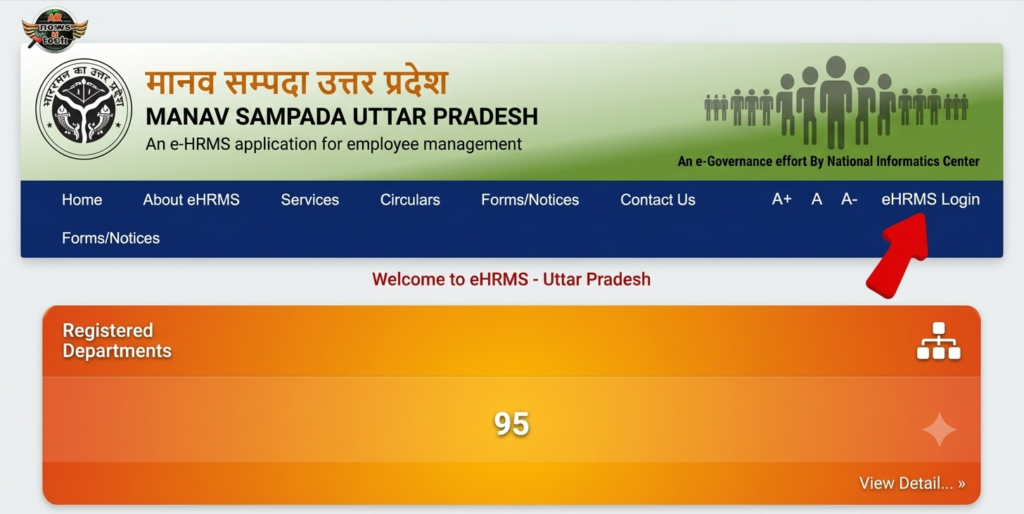
Step 2: Click on the eHRMS Login Option

Once you reach the Manav Sampada UP eHRMS homepage, click on the “eHRMS Login” or “Login” option. This will redirect you to the employee login page, where you can securely access your account and use various HR services, including leave management, salary slips, service book records, and employee details.

🔐

Login Tip

Always access the official Manav Sampada eHRMS Portal and make sure you have selected the correct department before logging in. Keep your User ID and Password ready for quick and secure access.
manav sampada portal up
/********************** FULL WIDTH STEP CARD **********************/*{ box-sizing:border-box; }.ms-step-card{ width:100%; margin:0; padding:35px; display:flex; gap:30px; align-items:flex-start; background:linear-gradient(135deg,#ffffff,#f8fbff); border:1px solid #e6edf7; border-top:6px solid #5CB531; border-radius:22px; box-shadow:0 15px 40px rgba(0,0,0,.08); transition:.35s; }.ms-step-card:hover{ transform:translateY(-5px); box-shadow:0 20px 45px rgba(0,0,0,.12); }.ms-step-number{width:72px; height:72px; min-width:72px; border-radius:50%; background:linear-gradient(135deg,#5CB531,#78C943); display:flex; align-items:center; justify-content:center; color:#fff; font-size:28px; font-weight:700;}.ms-step-content{flex:1; width:100%;}.ms-badge{display:inline-block; background:#F68B12; color:#fff; padding:8px 20px; border-radius:40px; font-size:14px; font-weight:600; margin-bottom:18px;}.ms-step-content h2{margin:0 0 18px; font-size:34px; color:#0B3D91; line-height:1.3;}.ms-step-content h2 span{color:#F68B12;}.ms-step-content p{font-size:17px; line-height:1.9; color:#555; margin-bottom:25px;}.ms-tip{display:flex; gap:18px; background:#EEF9EA; padding:22px; border-left:6px solid #5CB531; border-radius:18px;}.ms-tip-icon{width:55px; height:55px; min-width:55px; border-radius:50%; background:#5CB531; display:flex; align-items:center; justify-content:center; font-size:24px; color:#fff;}.ms-tip h4{margin:0 0 8px; font-size:21px; color:#0B3D91;}.ms-tip p{margin:0; font-size:16px; line-height:1.8;}/******** Responsive ********/@media(max-width:768px){.ms-step-card{flex-direction:column; padding:25px; gap:20px;}.ms-step-number{width:60px; height:60px; min-width:60px; font-size:24px;}.ms-step-content h2{font-size:26px;}.ms-step-content p{font-size:16px;}.ms-tip{flex-direction:column;}}
3
Department Selection

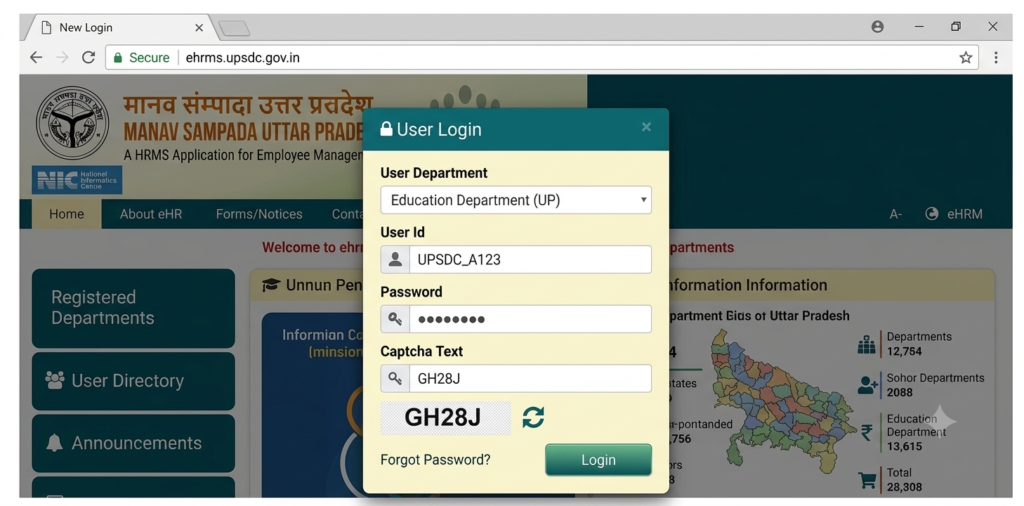
Step 3: Select Your Department

After opening the Manav Sampada eHRMS Portal, locate the Department dropdown menu on the login page. Select the government department where you are currently employed, such as Basic Education, Health, Revenue, or another listed department. Choosing the correct department is essential for accessing your employee account and using the available HR services.

🏢

Helpful Tip

Before proceeding, carefully verify that you have selected the correct department. Choosing the wrong department may prevent you from logging in or accessing your employee dashboard.
manav sampada login up
3
Login Credentials

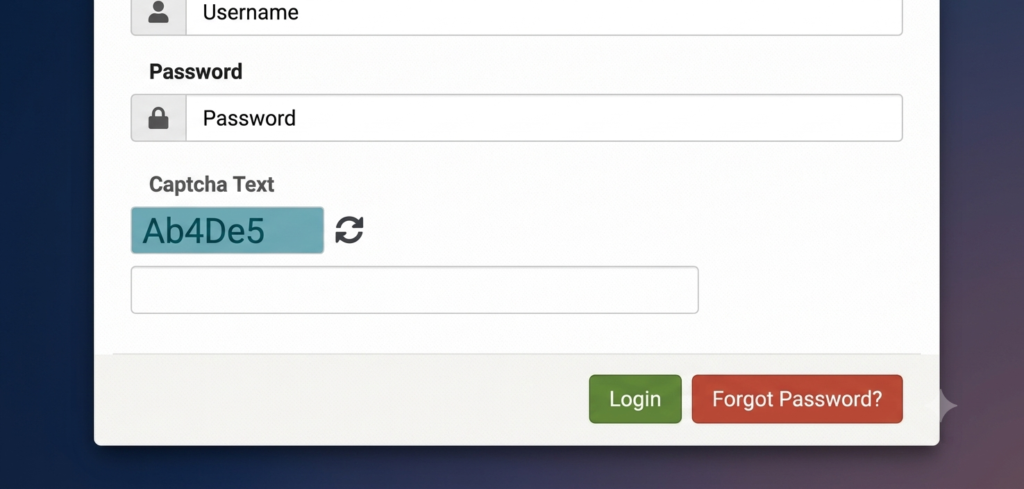
Step 3: Enter Your Login Credentials

On the Manav Sampada eHRMS login page, enter your registered User ID / Employee Code and Password. Next, type the Captcha Code exactly as displayed on the screen to complete the security verification. After verifying all the details, click the Login button to access your employee dashboard and available HR services.

👤 User ID / Employee Code

Enter your registered User ID or Employee Code.

🔒 Password

Type your password carefully to avoid login errors.

🛡 Captcha Code

Enter the Captcha exactly as shown on the screen.

➡ Login

Click the Login button to access your dashboard.

💡

Login Tip

Double-check your User ID, Password, and Captcha before clicking the Login button. If the Captcha is difficult to read, refresh it to generate a new one. Using the correct credentials helps you log in without unnecessary errors.
/************************ Dashboard & Eligibility ************************/.ms-dashboard{ padding:90px 20px; background:linear-gradient(135deg,#f7fbff,#f8fcf7); font-family:'Segoe UI',sans-serif; }.ms-dashboard-container{ max-width:1250px; margin:auto; }.ms-dashboard-grid{ display:grid; grid-template-columns:1.3fr .7fr; gap:35px; align-items:start; }.ms-tag{ display:inline-block; padding:9px 20px; background:#5CB531; color:#fff; border-radius:40px; font-size:14px; font-weight:600; margin-bottom:18px; }.ms-heading{ font-size:42px; color:#0B3D91; font-weight:800; line-height:1.3; margin-bottom:22px; }.ms-heading span{ color:#F68B12; }.ms-dashboard p{ font-size:17px; line-height:1.9; color:#555; margin-bottom:20px; }/******** Dashboard Card ********/.dashboard-card{background:#fff; border-radius:22px; padding:35px; box-shadow:0 15px 40px rgba(0,0,0,.08); margin-top:30px;}.dashboard-card h3{font-size:30px; color:#0B3D91; margin-bottom:25px;}.dashboard-grid{display:grid; grid-template-columns:repeat(2,1fr); gap:18px;}.dashboard-item{display:flex; align-items:center; gap:15px; padding:18px; background:#F8FBFF; border-radius:14px; border-left:5px solid #5CB531;}.dashboard-icon{width:50px; height:50px; border-radius:50%; background:#EEF9EA; display:flex; align-items:center; justify-content:center; font-size:22px;}.dashboard-item span{font-weight:600; color:#444;}/******** Eligibility ********/.eligibility-card{background:#fff; border-radius:22px; padding:35px; box-shadow:0 15px 40px rgba(0,0,0,.08);}.eligibility-card h3{font-size:30px; color:#0B3D91; margin-bottom:25px;}.eligibility-item{display:flex; gap:15px; margin-bottom:18px; padding:18px; background:#F8FBFF; border-left:5px solid #F68B12; border-radius:12px;}.eligibility-icon{width:42px; height:42px; min-width:42px; border-radius:50%; background:#F68B12; display:flex; align-items:center; justify-content:center; color:#fff; font-size:18px;}.eligibility-item p{margin:0; font-size:15px; line-height:1.7;}.ms-note{margin-top:25px; padding:20px; background:#EEF9EA; border-left:5px solid #5CB531; border-radius:14px;}.ms-note h4{margin:0 0 8px; color:#0B3D91;}.ms-note p{margin:0;}@media(max-width:991px){.ms-dashboard-grid{grid-template-columns:1fr;}.dashboard-grid{grid-template-columns:1fr;}}@media(max-width:768px){.ms-dashboard{padding:60px 18px;}.ms-heading{font-size:30px;}.ms-dashboard p{font-size:16px;}.dashboard-card, .eligibility-card{padding:25px;}}
Employee Dashboard

After Successful Manav Sampada Login

After a successful Manav Sampada Login, you will be redirected to your personal eHRMS UP Dashboard. From there, employees can access a wide range of HR services, including leave applications, service book records, salary information, employee details, transfer orders, promotion records, and other department-specific services through a single secure platform.

The Manav Sampada Portal is designed to simplify day-to-day employee management by providing secure online access to important HR services, reducing paperwork, improving transparency, and making administrative processes more efficient.

Services Available After Login

📝
Leave Application
📚
Service Book
💰
Salary Information
👤
Employee Details
🔄
Transfer Orders
📈
Promotion Records

Eligibility for Manav Sampada UP

Must be a government employee working under the Government of Uttar Pradesh.

A valid Employee ID or User ID issued by the concerned department is required.

Employee records must already be registered in the Manav Sampada Portal by the authorized HR or Nodal Officer.

Primarily available for active government employees. Some departments may provide limited access to retired employees or pensioners.

The concerned department must be integrated with the eHRMS Manav Sampada system to access HR services.

Employees must have valid User ID and Password to securely access the portal.

💡 Important Note

Self-registration is not available for employees. All employee records and login credentials are created and managed by the concerned government department through authorized officials.

/*************************** Documents Required Section ***************************/.ms-documents{ padding:90px 20px; background:linear-gradient(135deg,#f8fbff,#f8fcf8); font-family:'Segoe UI',sans-serif; }.ms-doc-container{ max-width:1250px; margin:auto; }.ms-doc-header{ text-align:center; margin-bottom:50px; }.ms-doc-badge{ display:inline-block; background:#5CB531; color:#fff; padding:10px 24px; border-radius:40px; font-size:14px; font-weight:700; margin-bottom:18px; }.ms-doc-header h2{ font-size:42px; color:#0B3D91; margin-bottom:15px; line-height:1.3; }.ms-doc-header h2 span{ color:#F68B12; }.ms-doc-header p{ max-width:900px; margin:auto; color:#666; font-size:17px; line-height:1.9; }.ms-doc-grid{ display:grid; grid-template-columns:repeat(2,1fr); gap:30px; }.ms-card{ background:#fff; border-radius:22px; padding:35px; box-shadow:0 15px 35px rgba(0,0,0,.08); transition:.35s; }.ms-card:hover{ transform:translateY(-6px); }.ms-card h3{ color:#0B3D91; font-size:28px; margin-bottom:22px; }.ms-list{ display:grid; gap:15px; }.ms-item{ display:flex; gap:15px; align-items:flex-start; background:#F8FBFF; padding:15px; border-radius:12px; }.ms-icon{ width:45px; height:45px; min-width:45px; border-radius:50%; display:flex; align-items:center; justify-content:center; color:#fff; font-size:20px; }.blue{background:#0B3D91;} .orange{background:#F68B12;} .green{background:#5CB531;} .red{background:#E53935;}.ms-item h4{ margin:0 0 5px; color:#0B3D91; font-size:18px; }.ms-item p{ margin:0; color:#666; line-height:1.7; font-size:15px; }.ms-note{ margin-top:35px; background:#FFF8E8; border-left:6px solid #F68B12; border-radius:18px; padding:25px; }.ms-note h3{ color:#0B3D91; margin-bottom:10px; }.ms-note p{ margin:0; color:#555; line-height:1.8; }@media(max-width:991px){.ms-doc-grid{ grid-template-columns:1fr; }}@media(max-width:768px){.ms-documents{ padding:60px 18px; }.ms-doc-header h2{ font-size:30px; }.ms-card{ padding:25px; }}
📂 Required Documents

Documents Required for Manav Sampada UP (eHRMS)

To access various services on the Manav Sampada Portal, employees may need to verify or upload specific documents. The required documents vary depending on the department and the service being used, such as leave applications, profile updates, service book verification, and employee record management.

Basic Documents

🆔

Employee Identity Card

Official identity card issued by your department.

🪪

Aadhaar Card

Recommended for employee identity verification.

🏦

Bank Passbook

Bank account details or passbook for salary-related services.

📱

Mobile & Email

Registered mobile number and valid email address.

Leave Application Documents

🏥

Medical Leave

Medical Certificate, RMP Certificate, and supporting medical reports.

👶

Maternity Leave

Hospital documents, maternity certificate, and identity proof if required.

👧

Child Care Leave

Birth Certificate, School Certificate, or Medical Certificate.

🎓

Study Leave

Admission Letter, Course Details, and Duration Certificate.

Other Supporting Documents

🎓

Educational Certificates

10th, 12th, Graduation & Post-Graduation Certificates.

📚

Professional Qualifications

B.Ed, BTC, D.El.Ed, and other professional certificates.

💳

PAN Card

Used for employee verification and official records.

🗳️

Voter ID / Driving Licence

Additional identity documents where required by the department.

📌 Important Note

The required documents may vary depending on your department and the service you are accessing. Incomplete applications or missing supporting documents may delay approval or result in rejection. Keeping your records updated in the Manav Sampada UP eHRMS Portal helps ensure smooth processing of leave requests, promotions, transfers, service book updates, and other HR-related services.

1
Leave Application

Step 1: Open the Manav Sampada eHRMS Portal and Log In

Open your preferred web browser and visit the official Manav Sampada eHRMS Portal. Complete the Manav Sampada Login process by selecting your department, entering your User ID / Employee Code, Password, and the displayed Captcha Code. After verifying the details, click the Login button to access your personal employee dashboard and continue with the online leave application process.

🌐 Open Portal

Visit the official Manav Sampada eHRMS website.

🏢 Select Department

Choose your department from the available list.

🔐 Enter Login Details

Provide your User ID, Password, and Captcha Code.

➡ Access Dashboard

Click Login to open your employee dashboard.

💡

Helpful Tip

Always access the official Manav Sampada eHRMS portal and verify your login details before signing in. After successful login, you can apply for leave, check leave status, view your service book, and access other HR services from your dashboard.

manav sampada portal
2
Employee Dashboard

Step 2: Access Your eHRMS Dashboard

After successfully logging in to the Manav Sampada UP eHRMS Portal, you will be redirected to your personal eHRMS Dashboard. The dashboard serves as the central hub for managing all employee-related services, including leave applications, service book records, salary information, employee details, transfer requests, promotions, and other department-specific HR services.

📋 Employee Dashboard

View all available HR services from one place.

📝 Leave Management

Apply for leave and check leave status online.

📚 Service Book

Access your digital service book and employee records.

💰 Salary & HR Services

View salary details, transfers, promotions, and other HR services.

📌

Dashboard Tip

Before applying for leave, ensure that your employee profile and department details are correct. The eHRMS Dashboard provides quick access to all available services through a single, secure interface.

3
Leave Services

Step 3: Select the Leave Application Option

On your eHRMS Dashboard, locate the Leave or Apply Leave option from the available employee services. Click on it to open the online leave application page, where you can submit a new leave request, view your leave balance, and track previously submitted leave applications.

📝

Helpful Tip

Before submitting a leave request, review your available leave balance and select the appropriate leave category to avoid delays in the approval process.

manav sampada portal up
3
Leave Application

Step 3: Open the Leave Application Section

After logging in to the Manav Sampada Portal, navigate to the Leave or Online Leave Application section from your employee dashboard. Click on Apply Leave to begin submitting a new leave request through the eHRMS system.

📝

Helpful Tip

Before creating a new leave request, check your available leave balance to ensure you have sufficient leave available for the selected period.

4
Leave Details

Step 4: Select the Leave Type

Select the appropriate leave category, such as Casual Leave (CL), Earned Leave (EL), Medical Leave, Maternity Leave, or any other leave applicable to your department. Then choose the From Date and To Date. The portal will automatically calculate the total number of leave days.

📅

Helpful Tip

Carefully select the leave category and verify the dates before moving to the next step to avoid errors in your application.

5
Leave Reason

Step 5: Enter the Reason for Leave

Enter a clear and accurate reason for your leave request. If your selected leave type requires supporting documents, upload the necessary files such as a Medical Certificate, Hospital Documents, or any other required proof. Providing complete and accurate information helps the concerned authority process your request more efficiently.

📄

Helpful Tip

Upload clear and readable supporting documents in the required format to avoid delays in leave approval.

6
Submit Application

Step 6: Review and Submit the Application

Review all the information entered, including the Leave Type, Leave Dates, Reason, and any uploaded documents. Once you have confirmed that everything is correct, click the Submit button to complete your Manav Sampada Leave Application. After submission, you can monitor the approval status directly from your eHRMS dashboard.

Final Tip

Save the application reference number or regularly check the dashboard to track the status of your leave request and receive approval updates.

/************************ Leave Status Section ************************/.ms-status-section{ padding:90px 20px; background:linear-gradient(135deg,#F8FBFF,#F8FCF8); font-family:'Segoe UI',sans-serif; }.ms-status-container{ max-width:1250px; margin:auto; }.ms-status-badge{ display:inline-block; background:#5CB531; color:#fff; padding:10px 24px; border-radius:40px; font-size:14px; font-weight:700; margin-bottom:18px; }.ms-status-title{ font-size:42px; color:#0B3D91; font-weight:800; line-height:1.3; margin-bottom:20px; }.ms-status-title span{ color:#F68B12; }.ms-status-desc{ color:#666; font-size:17px; line-height:1.9; margin-bottom:40px; }.ms-step-grid{ display:grid; grid-template-columns:repeat(2,1fr); gap:20px; margin-bottom:45px; }.ms-step-box{ background:#fff; padding:22px; border-radius:18px; box-shadow:0 10px 30px rgba(0,0,0,.06); display:flex; gap:15px; align-items:flex-start; }.ms-step-icon{ width:52px; height:52px; min-width:52px; border-radius:50%; display:flex; align-items:center; justify-content:center; color:#fff; font-size:22px; }.blue{background:#0B3D91;} .orange{background:#F68B12;} .green{background:#5CB531;} .red{background:#D32F2F;}.ms-step-box h4{ margin:0 0 8px; color:#0B3D91; font-size:20px; }.ms-step-box p{ margin:0; color:#666; line-height:1.7; }.ms-table{ width:100%; border-collapse:collapse; overflow:hidden; border-radius:18px; box-shadow:0 15px 35px rgba(0,0,0,.08); }.ms-table thead{ background:#0B3D91; color:#fff; }.ms-table th, .ms-table td{ padding:18px; text-align:left; border-bottom:1px solid #eee; }.ms-table tbody tr:nth-child(even){ background:#FAFCFF; }.ms-table tbody tr:hover{ background:#F2F8FF; }.ms-note{ margin-top:30px; background:#FFF8E7; border-left:6px solid #F68B12; padding:22px; border-radius:15px; }.ms-note h4{ margin:0 0 10px; color:#0B3D91; }.ms-note p{ margin:0; color:#555; line-height:1.8; }@media(max-width:768px){.ms-status-section{ padding:60px 18px; }.ms-status-title{ font-size:30px; }.ms-step-grid{ grid-template-columns:1fr; }.ms-table{ display:block; overflow-x:auto; white-space:nowrap; }}
📋 Leave Status

How to Check Manav Sampada Leave Application Status

After submitting your leave request through the Manav Sampada Portal, you can easily monitor the approval process online. The portal allows employees to track every stage of their leave application without visiting the concerned department.

🔐

Step 1

Log in to the Manav Sampada UP Portal using your User ID and Password.

📂

Step 2

Navigate to Leave → Leave Status or Leave History from your dashboard.

📄

Step 3

Select the leave application whose status you want to check.

👀

Step 4

The current status of your leave application will be displayed instantly on the screen.

StatusMeaningRecommended Action
ApprovedYour leave request has been approved by the competent authority.Download or keep a copy of the approved leave record for future reference if required.
🟡 PendingYour leave application is currently under review and awaiting approval.Wait for the reporting or approving officer to process your request.
RejectedYour leave request has not been approved.Check the remarks section, correct any issues, and submit a new application if necessary.

💡 Important Tip

If your leave application remains in Pending status for an extended period, you should contact your reporting or approving officer for further assistance. Always review the remarks section if your application is rejected before submitting another leave request.

/****************************** Leave Balance & Salary Slip ******************************/.ms-service-section{ padding:90px 20px; background:linear-gradient(135deg,#F8FBFF,#F8FCF8); font-family:'Segoe UI',sans-serif; }.ms-service-container{ max-width:1250px; margin:auto; }.ms-service-grid{ display:grid; grid-template-columns:repeat(2,1fr); gap:35px; }.ms-service-card{ background:#fff; border-radius:22px; overflow:hidden; box-shadow:0 15px 40px rgba(0,0,0,.08); }.ms-header{ padding:30px; color:#fff; }.leave-header{ background:linear-gradient(135deg,#5CB531,#6CC63E); }.salary-header{ background:linear-gradient(135deg,#0B3D91,#2D65C8); }.ms-header h2{ margin:0; font-size:30px; }.ms-header p{ margin:15px 0 0; line-height:1.8; opacity:.95; }.ms-body{ padding:30px; }.ms-step{ display:flex; gap:18px; margin-bottom:18px; align-items:flex-start; }.ms-number{ width:42px; height:42px; min-width:42px; border-radius:50%; background:#F68B12; color:#fff; display:flex; align-items:center; justify-content:center; font-weight:700; }.ms-step p{ margin:0; color:#555; line-height:1.7; }.ms-tip{ margin-top:25px; background:#FFF8E8; border-left:6px solid #F68B12; padding:20px; border-radius:14px; }.ms-tip h4{ margin:0 0 10px; color:#0B3D91; }.ms-tip p{ margin:0; color:#555; line-height:1.8; }@media(max-width:991px){.ms-service-grid{ grid-template-columns:1fr; }}@media(max-width:768px){.ms-service-section{ padding:60px 18px; }.ms-header h2{ font-size:25px; }}

📋 View & Download Leave Balance

Government employees can check their available leave balance online through the Manav Sampada UP eHRMS Portal, including Earned Leave, Casual Leave, Medical Leave, and other leave categories.

1

Visit the official Manav Sampada eHRMS Portal.

2

Log in using your User ID, Password, and Captcha Code.

3

Open your Employee Dashboard.

4

Navigate to Leave Management or the Leave section.

5

Click on Leave Balance or Leave Account.

6

Your available, used, and remaining leave balance will be displayed.

7

Click Download or Print (if available) to save the leave balance as a PDF.

💰 Download Salary Slip

Employees can access monthly salary slips and pay details directly from the Manav Sampada UP Portal without visiting their department.

1

Log in to the Manav Sampada Portal using your User ID and Password.

2

Open the Salary, Pay Slip, or Employee Services section.

3

Select the Month and Year for which you want to download the salary slip.

4

Click View or Download to generate your salary slip.

5

Save the salary slip as a PDF or print it for future reference.

📌 Important Note

If the Salary Slip or Pay Details option is not available in your account, your department may not have enabled this feature. Contact your department's HR or Accounts Office for assistance.

/********************************* Transfer • Service Book • Employee ID *********************************/.ms-portal-section{ padding:90px 20px; background:linear-gradient(135deg,#F8FBFF,#F8FCF8); font-family:'Segoe UI',sans-serif; }.ms-container{ max-width:1250px; margin:auto; }.ms-grid{ display:grid; grid-template-columns:repeat(2,1fr); gap:30px; margin-bottom:30px; }.ms-card{ background:#fff; border-radius:22px; overflow:hidden; box-shadow:0 15px 35px rgba(0,0,0,.08); transition:.35s; }.ms-card:hover{ transform:translateY(-6px); }.ms-header{ padding:28px; color:#fff; }.transfer{ background:linear-gradient(135deg,#0B3D91,#2963C5); }.servicebook{ background:linear-gradient(135deg,#5CB531,#79C93F); }.employeeid{ background:linear-gradient(135deg,#F68B12,#FFAA33); }.ms-header h2{ margin:0; font-size:28px; }.ms-header p{ margin-top:12px; line-height:1.8; opacity:.96; }.ms-body{ padding:30px; }.ms-step{ display:flex; gap:15px; margin-bottom:16px; }.ms-number{ width:40px; height:40px; min-width:40px; border-radius:50%; background:#F68B12; color:#fff; display:flex; align-items:center; justify-content:center; font-weight:700; }.ms-step p{ margin:0; line-height:1.8; color:#555; }.ms-tip{ margin-top:22px; background:#EEF9EA; border-left:6px solid #5CB531; padding:20px; border-radius:15px; }.ms-tip h4{ margin:0 0 10px; color:#0B3D91; }.ms-tip p{ margin:0; color:#555; line-height:1.8; }.employee-method{ margin-top:25px; background:#F8FBFF; border-left:6px solid #0B3D91; border-radius:15px; padding:22px; }.employee-method h3{ margin:0 0 15px; color:#0B3D91; }.employee-method ul{ margin:0; padding-left:20px; }.employee-method li{ margin-bottom:10px; line-height:1.8; color:#555; }@media(max-width:991px){.ms-grid{ grid-template-columns:1fr; }}@media(max-width:768px){.ms-portal-section{ padding:60px 18px; }.ms-header h2{ font-size:24px; }.ms-body{ padding:22px; }}

🔄 Transfer & Posting Orders

View and download the latest transfer and posting orders directly from your Manav Sampada dashboard.

1

Log in to the Manav Sampada UP Portal using your User ID and Password.

2

Open the Employee Services or Transfer & Posting section.

3

Select the available transfer or posting order from the list.

4

Click the order to View or Download it in PDF format.

5

If no order appears, it may indicate that no transfer has been issued or the department has not updated the information yet.

📌 Important Tip

Always download and keep a copy of your transfer or posting order for future departmental and administrative use.

📚 View Your Service Book

Access your complete digital Service Book, including employment records, promotions, salary details, and service history.

1

Sign in to the Manav Sampada Portal.

2

Open the Service Book or Employee Service Book section.

3

Review your personal details, appointment information, promotions, and pay records.

4

Check leave history, transfers, postings, and other departmental updates.

5

If available, download or print your Service Book for future reference.

💡 Helpful Tip

If you notice any incorrect information, immediately contact your department's HR Section or Nodal Officer to request corrections.

🆔 How to Get Your Manav Sampada Employee ID

Your Employee ID is required to access login, leave management, salary slips, Service Book, and other HR services.

Method 1: Contact Your Department's Nodal Officer (Recommended)

  • Provide your official Employee ID or User ID.
  • Verify whether your profile is active on the portal.
  • Confirm your department and office details.
  • Assist with first-time login and password-related issues.
  • Guide you regarding technical support and account activation.

Method 2: Check Your Official Documents

  • Appointment Letter or Joining Order
  • Government Employee Identity Card
  • Monthly Salary Slip or Pay Slip
  • Service Book
  • Office Joining Documents

✅ Important Note

If you cannot find your Employee ID on any official document, contact your department's HR Section, Office Head, School Principal, or Nodal Officer for assistance.

/****************************** m-STHAPANA & Benefits Section ******************************/.ms-app-section{ padding:90px 20px; background:linear-gradient(135deg,#F8FBFF,#F8FCF8); font-family:'Segoe UI',sans-serif; }.ms-container{ max-width:1250px; margin:auto; }.ms-grid{ display:grid; grid-template-columns:1fr 1fr; gap:35px; margin-bottom:35px; }.ms-card{ background:#fff; border-radius:22px; overflow:hidden; box-shadow:0 15px 35px rgba(0,0,0,.08); transition:.35s; }.ms-card:hover{ transform:translateY(-6px); }.ms-header{ padding:30px; color:#fff; }.app-header{ background:linear-gradient(135deg,#0B3D91,#275FBD); }.benefit-header{ background:linear-gradient(135deg,#5CB531,#78C943); }.ms-header h2{ margin:0; font-size:30px; }.ms-header p{ margin-top:15px; line-height:1.8; opacity:.95; }.ms-body{ padding:30px; }.download-box{ background:#F8FBFF; border-left:5px solid #F68B12; padding:22px; border-radius:15px; margin-bottom:25px; }.download-box h3{ color:#0B3D91; margin-bottom:15px; }.download-box ol{ margin:0; padding-left:20px; }.download-box li{ margin-bottom:10px; color:#555; line-height:1.8; }.benefit-list{ display:grid; grid-template-columns:repeat(2,1fr); gap:15px; }.benefit-item{ background:#F8FBFF; padding:18px; border-radius:14px; border-left:5px solid #5CB531; font-size:15px; color:#555; line-height:1.7; }.note-box{ margin-top:25px; background:#FFF8E8; border-left:6px solid #F68B12; padding:20px; border-radius:14px; }.note-box h4{ margin:0 0 10px; color:#0B3D91; }.note-box p{ margin:0; color:#555; line-height:1.8; }@media(max-width:991px){.ms-grid{ grid-template-columns:1fr; }.benefit-list{ grid-template-columns:1fr; }}@media(max-width:768px){.ms-app-section{ padding:60px 18px; }.ms-header h2{ font-size:26px; }.ms-body{ padding:22px; }}

📱 m-STHAPANA Mobile App

Access Manav Sampada UP eHRMS services anytime and anywhere using the official mobile application.

🤖 Android Users

  1. Open the Google Play Store.
  2. Search for "m-STHAPANA UP Government".
  3. Verify the publisher as UPSDC.
  4. Tap Install.
  5. Log in using your Manav Sampada User ID and Password.

🍎 iPhone (iOS) Users

  1. Open the Apple App Store.
  2. Search for "m-STHAPANA UP Government".
  3. Verify the publisher as UPSDC.
  4. Download and install the application.
  5. Sign in using your Manav Sampada Login credentials.

💡 Quick Tip

Always download the official application published by UPSDC to keep your employee information secure and access genuine Manav Sampada services.

✅ Benefits of Manav Sampada UP

The Manav Sampada eHRMS Portal simplifies government employee management through a secure digital HRMS platform.

✔ Centralized digital employee records.
✔ Online leave application & real-time tracking.
✔ Easy access to salary slips and service book.
✔ Update employee information where permitted.
✔ Greater transparency in transfers and promotions.
✔ Reduces paperwork and manual processing.
✔ Access through Portal & m-STHAPANA App.
✔ Digital reports for attendance and leave management.
✔ Secure employee data with role-based access.
✔ Saves time by providing online HR services.

📌 Why Employees Prefer Manav Sampada

The platform offers a faster, paperless, and transparent HR management experience, allowing government employees to access important services anytime through both the web portal and the official m-STHAPANA mobile application.

/*********************** Premium FAQ Section ***********************/.ms-faq-section{ padding:90px 20px; background:linear-gradient(135deg,#F8FBFF,#F8FCF8); font-family:'Segoe UI',sans-serif; }.ms-faq-container{ max-width:1100px; margin:auto; }.ms-faq-heading{ text-align:center; margin-bottom:50px; }.ms-faq-heading span{ display:inline-block; background:#5CB531; color:#fff; padding:8px 22px; border-radius:40px; font-size:14px; font-weight:600; margin-bottom:15px; }.ms-faq-heading h2{ font-size:42px; color:#0B3D91; margin:0 0 15px; }.ms-faq-heading p{ max-width:750px; margin:auto; color:#666; line-height:1.8; font-size:17px; }.ms-faq details{ background:#fff; margin-bottom:18px; border-radius:16px; box-shadow:0 10px 30px rgba(0,0,0,.08); overflow:hidden; transition:.3s; }.ms-faq details:hover{ transform:translateY(-3px); }.ms-faq summary{ list-style:none; cursor:pointer; padding:22px 25px; font-size:19px; font-weight:700; color:#0B3D91; position:relative; padding-right:60px; }.ms-faq summary::-webkit-details-marker{ display:none; }.ms-faq summary::after{ content:"+"; position:absolute; right:25px; top:50%; transform:translateY(-50%); width:34px; height:34px; border-radius:50%; background:#F68B12; color:#fff; display:flex; align-items:center; justify-content:center; font-size:22px; font-weight:bold; transition:.3s; }.ms-faq details[open] summary::after{ content:"−"; background:#5CB531; }.ms-faq-content{ padding:0 25px 25px; color:#555; line-height:1.9; font-size:16px; border-top:1px solid #eee; }@media(max-width:768px){.ms-faq-section{ padding:60px 18px; }.ms-faq-heading h2{ font-size:30px; }.ms-faq summary{ font-size:17px; padding:18px 20px; padding-right:55px; }.ms-faq-content{ padding:0 20px 20px; }}
Frequently Asked Questions

Manav Sampada UP FAQs

Find answers to the most commonly asked questions about the Manav Sampada UP eHRMS Portal, including login, leave applications, salary slips, service book, and employee services.

Q1. Who can use the Manav Sampada eHRMS Portal?
The Manav Sampada Portal is primarily designed for government employees working under various departments of the Government of Uttar Pradesh. Employees whose departments are integrated with the Manav Sampada UP system can access services such as leave management, service book, salary information, employee records, and other HR services.
Q2. What details are required to access the Manav Sampada Portal?
Employees generally need a valid User ID (Employee ID) and Password issued by their department. Your employee profile must already be registered by the department's HR or Nodal Officer. Some services may also require your registered mobile number or email address.
Q3. How do I apply for leave through Manav Sampada?
Log in to the Manav Sampada Portal, open the Leave or Online Leave Application section, choose the leave type, select the dates, enter the reason, upload supporting documents if required, and submit the application. You can track the application through Leave Status or Leave History.
Q4. How can I download my salary slip from Manav Sampada UP?
After logging in, open the Salary, Pay Slip, or Employee Services section, select the required month and year, and click View or Download. If the option is unavailable, contact your department's HR or Accounts Office.
Q5. How can I check my leave balance in Manav Sampada?
Go to the Leave Management section after logging in and select Leave Balance or Leave Account. Your available, used, and remaining leave balance will be displayed, and you may also have the option to download or print the report.
Q6. What should I do if I forget my Manav Sampada login password?
If you forget your password, contact your department's HR or Nodal Officer. They can reset your password or assist you with the account recovery process according to your department's policy.
Q7. Is the m-STHAPANA mobile app an official application?
Yes. The m-STHAPANA app is the official companion application for the Manav Sampada eHRMS Portal. It is available for both Android and iOS devices and allows eligible government employees to access important HR services directly from their smartphones.
Scroll to Top